Get Started with Metain
Set up in under 2 minutes. No keys, no config - just connect and build.
Download Roblox Studio
Roblox Studio is the free game engine where your creations come to life. Download it from the official Roblox site.
Download Roblox StudioAlready have Studio? Skip to step 2.
Grab the Metain Plugin
Get our free plugin from the Roblox Creator Store. Click "Get Plugin" - it installs automatically into Studio.
Get the PluginConnect & Start Building
Open Studio and click Metain Connect in the Plugins tab. On metain.dev, click "Get Connection Code" and enter the code in the plugin. Start typing prompts - the AI builds directly in your game.
Open Metain ChatComplete Guide
Step-by-step walkthrough
New to Roblox? Never installed a plugin before? This guide covers everything.

What is Roblox Studio?
Roblox Studio is the free tool used to build games on Roblox. If you've ever played a Roblox game, it was made in Studio. You don't need any coding experience to get started with Metain - that's the whole point.
Studio runs on Windows and Mac. It's completely free to download and use.
Installing Roblox Studio
- 1Go to roblox.com/create and click "Start Creating". If you don't have a Roblox account yet, you'll need to create one first - it's free.
- 2The installer will download automatically. Open it and follow the prompts. On Mac, drag it to your Applications folder.
- 3Once installed, open Studio and sign in with your Roblox account. You'll see a screen with templates - you can pick any one or start with a blank Baseplate.
Getting the Metain Plugin
Plugins are add-ons that extend what Studio can do. The Metain plugin is what connects your Studio session to our AI.
- 1Open the Metain plugin page on the Roblox Creator Store.
- 2Click "Get Plugin". It installs automatically - no files to move, no folders to find.
- 3Restart Studio if it was already open. You'll see "Metain Connect" in the Plugins tab.
Stay safe - only use the official plugin
Only install the Metain plugin from our official Creator Store page. If you find a Metain plugin elsewhere, verify the asset ID matches 77655523450717. Unofficial or copycat plugins could access your Studio session, inject malicious scripts into your game or steal your connection credentials. We will never distribute the plugin outside of the Roblox Creator Store.
Connecting to Metain
This is where everything comes together. You'll link your Studio session to the Metain chat so the AI can build directly in your game.
- 1In Studio, click the Metain Connect in the Plugins tab. A small panel will open.
- 2Go to metain.dev/chat in your browser and sign in with your Roblox account.
- 3Click "Get Connection Code". You'll get a 6-character code. Enter it in the Studio plugin panel and click Connect.
- 4That's it. Start typing what you want to build in the chat - the AI writes the code and places it in your game in real-time.
When you first connect, Roblox Studio will show a permission prompts like this:
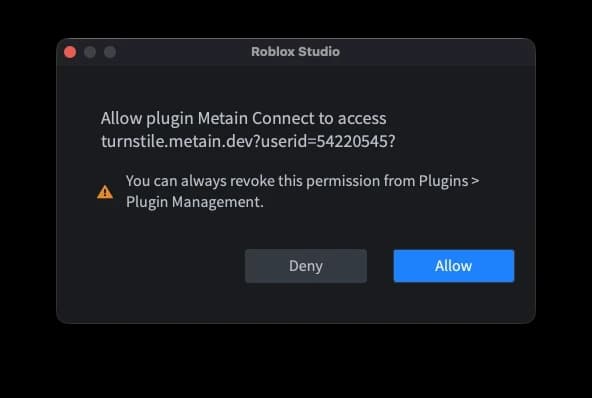
You must press Allow to let the plugin communicate with our web interface. If you press Deny, the plugin won't be able to sync with your chat session and actions may still consume credits without reaching Studio.
How it actually works
Metain is an AI that understands Roblox. When you type a prompt like "make a coin collection system" or "add a health bar UI", the AI generates real Luau code and sends it straight to Studio through the plugin. No copy-pasting, no switching tabs.
You don't need to download any extra software, provide API keys or mess with configuration files. Everything runs in your browser - just the Studio plugin and our web chat. The free tier gives you access to the AI with restricted actions per message. If you need more power, you can upgrade anytime from the pricing page.
Under the hood, the plugin connects to Metain's servers through a WebSocket and executes AI-generated commands directly in Studio. Powered by Anthropic's Claude API with tooling we've built specifically for Roblox development. As the model gets smarter, Metain gets better automatically. The plugin is open source.
The plugin only connects when you give it a connection code. It can only modify things inside your Studio session - nothing else. You stay in full control.
Tips for best results
- -Be specific. "Make a red button that gives 10 coins when clicked" works better than "make a button".
- -Build step by step. Start with one thing, test it, then ask for the next. The AI remembers your conversation.
- -Use undo. If the AI does something you don't like, hit the undo button. It only reverts Metain's changes - your manual work stays safe.
- -Connection codes expire. If yours stops working, just generate a new one. The plugin also reconnects automatically if the connection drops.
- -Let longer tasks finish. Complex builds can take a moment. Let them finish rather than cancelling for the best results.
- -Select your experience during sign-in. When you sign in with Roblox, you'll see a screen asking which experiences to grant access to. Make sure to select the game you want Metain to create developer products, game passes or badges for. To change your selection later, sign out of Metain and sign back in - the experience picker will appear again.
Troubleshooting
- -Can't find the Metain button after installing? Go to the Plugins tab in Studio and open Plugin Management to make sure the Metain plugin is enabled. You may need to restart Studio after installing.
- -Plugin not showing in Plugin Management? Try reinstalling it from the Creator Store and restarting Studio.
- -For more help with Roblox Studio plugins, see the official Roblox documentation.
Ready in minutes. No setup hassle.